Roles Using Search & Sequences
Last updated: October 26, 2026
Some hiring teams on Paraform ask that candidates for their roles be sourced and contacted through Paraform. On these roles, you can submit a candidate once you've found them in Search and reached out through Sequences. It's the same Search, Save, Sequence flow you may already be using.
Learn why hiring teams ask for this, how to spot these roles, and what counts toward a submission. For a full walkthrough of the tools, see 📄 Paraform Search and 📄 Email Sequences.
Why some roles work this way
Some hiring teams have asked to keep sourcing and outreach for their roles in Paraform. Working this way also has real upside for you and the candidates you're reaching out to.
Credit for your candidates. Paraform tracks when a candidate was saved, contacted, and submitted. When sourcing and outreach both happen in Paraform, that record is complete, so if a candidate hears about a role from more than one place, it's clear you reached them first. See 📄 Candidate Ownership for more details.
A better candidate experience. When outreach runs through a sequence linked to the role, candidates get an accurate, consistent picture of the opportunity no matter who reaches out. That makes for warmer conversations and stronger submissions.
Less wasted outreach. Some hiring teams have people or companies they'd rather not have contacted, such as their own employees, candidates they're already speaking with, or partner companies. Sourcing in Paraform keeps your outreach connected to the role, so your time goes toward candidates who can move forward.
Spotting these roles
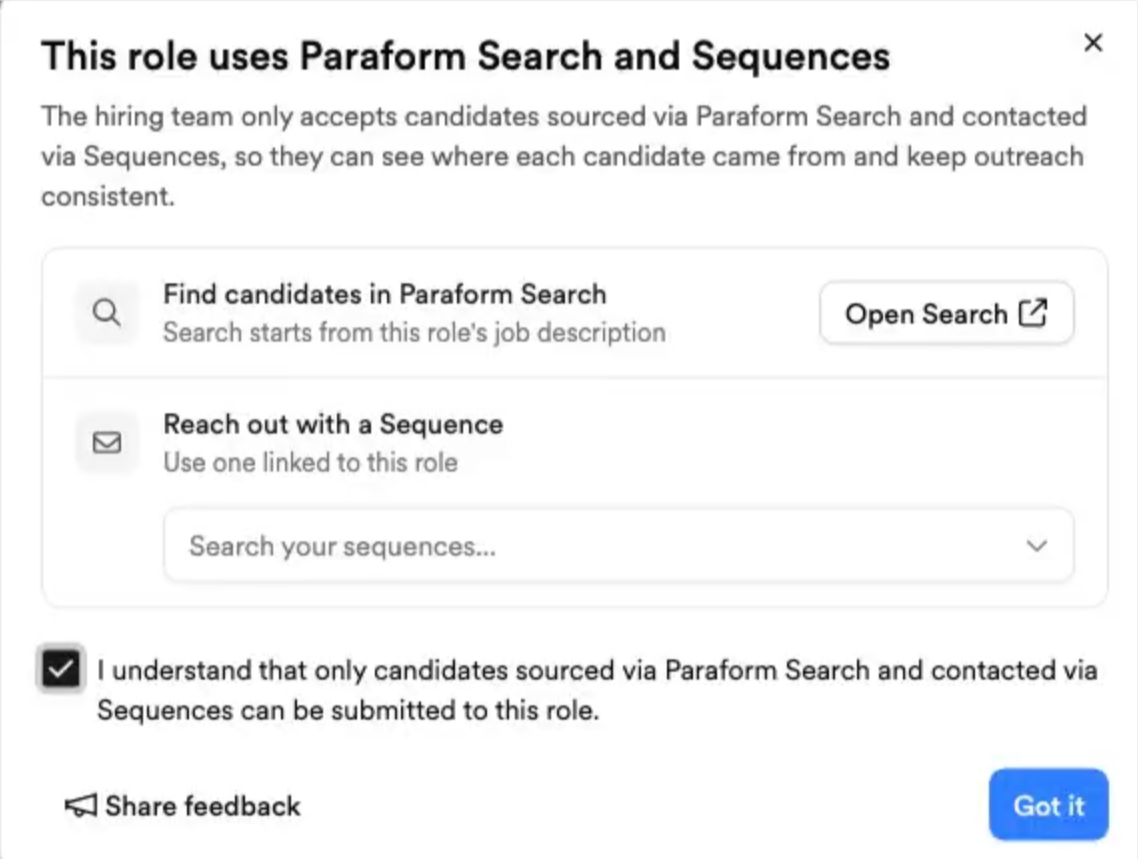
When you first open a role where the hiring team has made this request, you'll see a pop-up explaining how the role works. After that, a pinned banner on the role page keeps it easy to reference.
On the submission page, if you select a candidate who wasn't sourced and contacted through Paraform, you'll see a note explaining what's missing. The Submit button stays unavailable for that candidate.
Most roles on Paraform work exactly as they do today. This only applies where a hiring team has asked for it.
What counts toward a submission
A candidate is ready to submit once they've been both sourced and contacted through Paraform.
Sourced through Paraform
Counts: Saving a candidate from Search, using the bookmark or the save menu, or from the sourcing agent.
Doesn't count: Adding a candidate manually, uploading by CSV, adding through the Chrome extension, viewing a profile without saving it, or adding someone to a project on its own.
Contacted through Paraform
Counts: An email that has sent from a sequence linked to the role.
Doesn't count: Emails from a sequence that isn't linked to the role, in-app emails, LinkedIn messages, enrolling a candidate in a sequence that hasn't sent yet, marking a task complete without sending anything, or outreach through the Chrome extension.
Working these roles
Connect Gmail or Outlook. Sequences send from your inbox, so connect Gmail or Outlook from your Integrations page if you haven't already.
Search. Click the role's chip below the search bar and Search builds a query from the role's intake. Refine from there with filters or plain language.
Save. Click the bookmark on anyone worth pursuing to save them to your Candidates CRM. Creating a project for the role makes it easy to move the whole batch through outreach together.
Link your sequence to the role. When you create a sequence, link it to the role you're working. Only emails from a sequence linked to the role count toward a submission, so this step is key to being able to submit. If you're using an existing sequence, you can link the role from its Overview tab.
Sequence. Select your saved candidates, click Add to sequence, and choose the sequence linked to the role. Nothing goes out until you start the sequence, so review the schedule and then hit start.
Submit. Once a candidate's first email has sent, submit them through the usual flow.
A note on timing: a candidate counts as contacted once their first email has actually sent. Adding them to a sequence isn't enough on its own. If the Submit button isn't available yet, check that the sequence is linked to the role and has been started, then look at the candidate's status in the sequence's Leads or Breakdown tab.
Questions or feedback
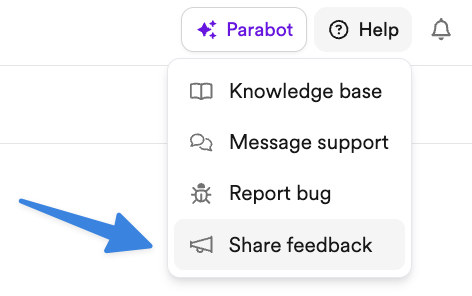
We'd love to hear how Search and Sequences are working for you on these roles. Share feedback through the Help feedback box at the top right of your dashboard, or reach out to your account manager with any questions.