Preparing Your Roles to Go Out of Office
Last updated: November 16, 2026
Heading out for the holidays or some time off? You can list your OOO dates on your roles. Recruiters will know you're away, and your roles won't take a hit while you're gone. This will keep your team, your recruiters, and your candidates positioned to continue strong once you're back.
What happens while you're away
New submissions pause on the roles you choose.
Candidates already interviewing aren't affected. Their process continues as normal.
Recruiters can see when you're back. Your roles show a note like "Hiring manager away Dec 22 to Jan 4", along with any message you leave them.
Your hiring manager rating won't drop while you're away.
Everything turns back on automatically on your return date. You don't need to do anything.
How to set your out of office
For all your roles at once
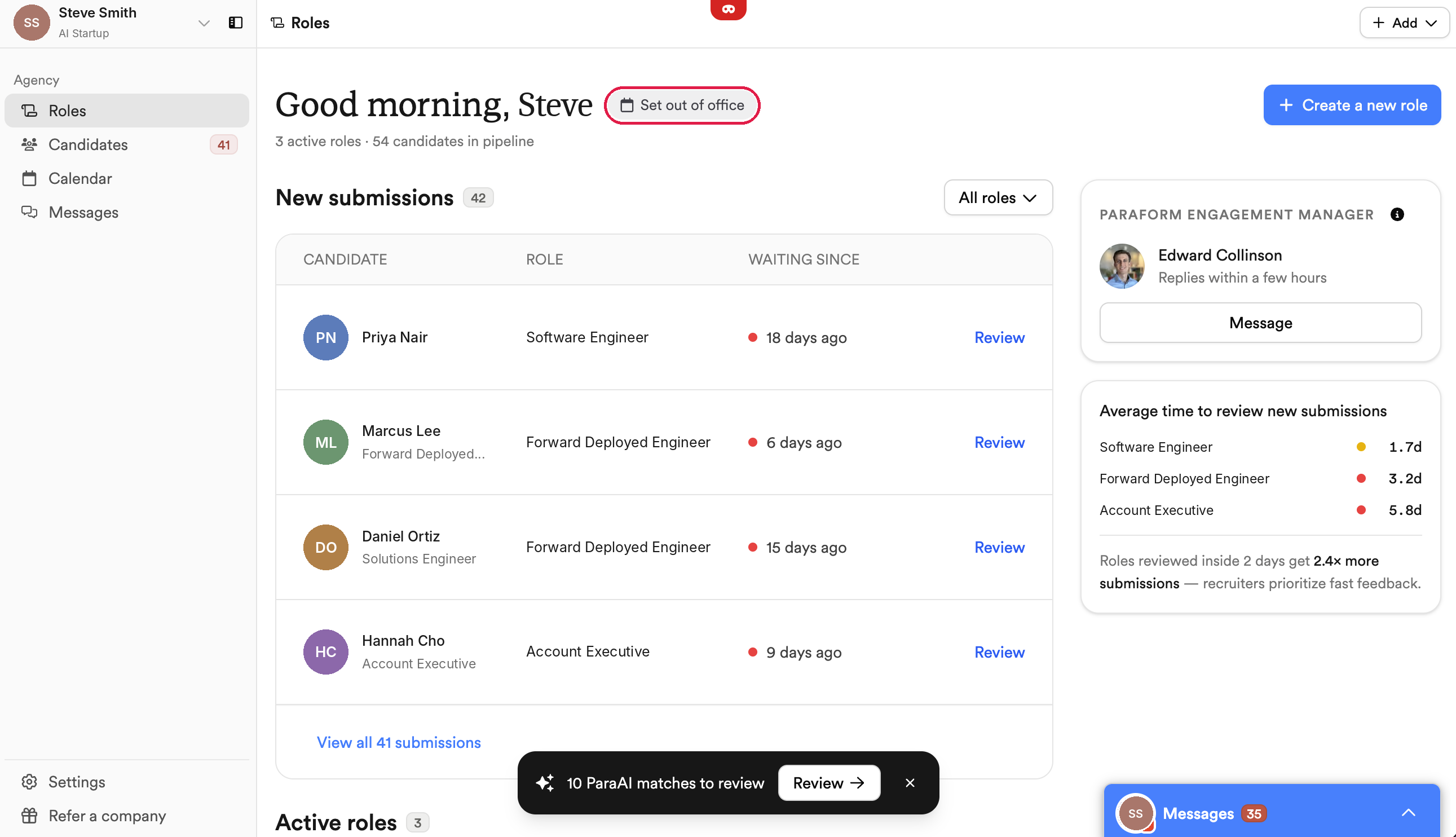
Go to your Home page.
Click Set out of office. It's the calendar button next to your greeting.
Fill in the pop-up (details below) and click Save.
For a single role
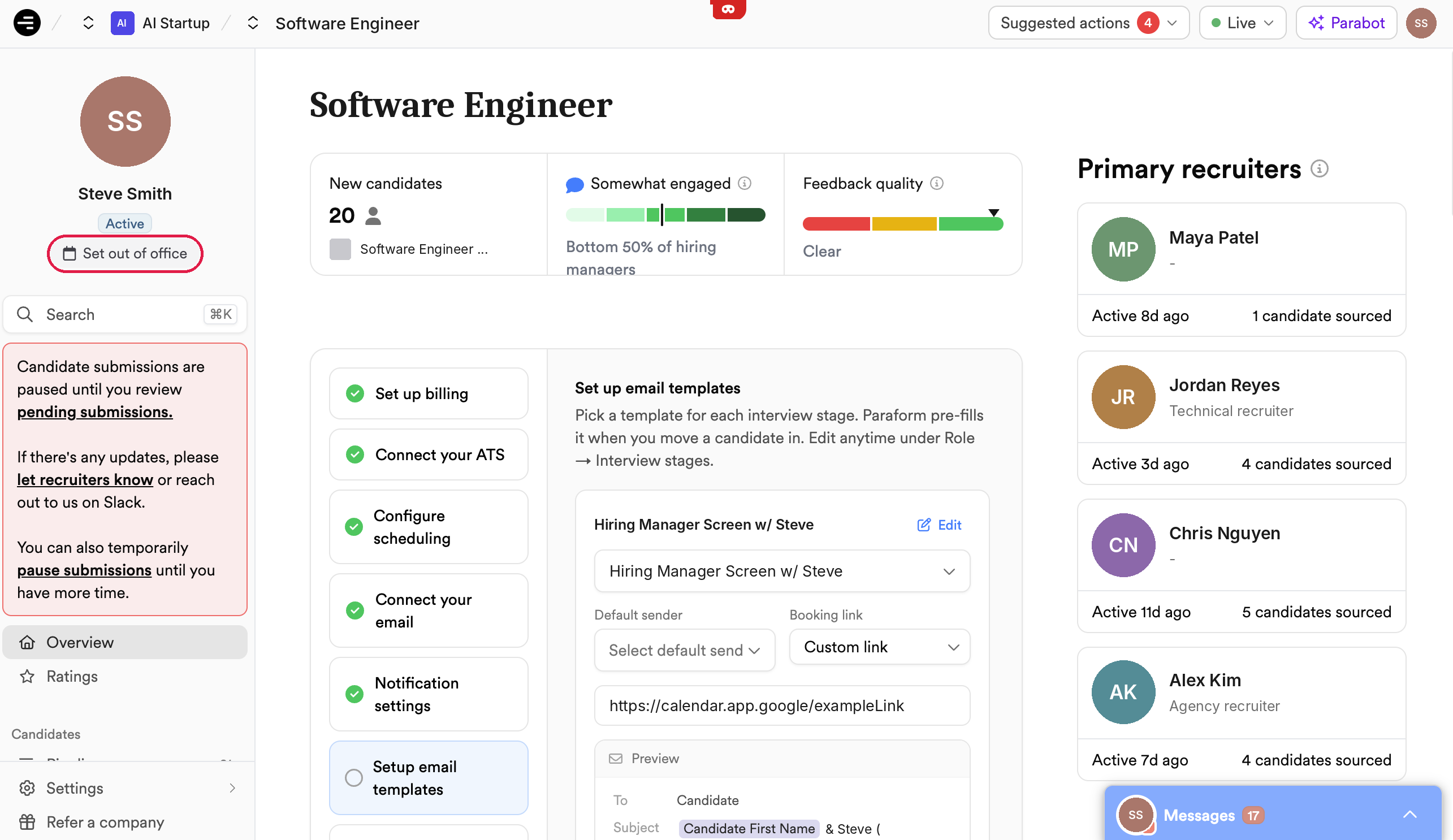
Open the role.
In the left sidebar, click Set out of office under your hiring manager rating.
Fill in the pop-up and click Save.
What's in the pop-up
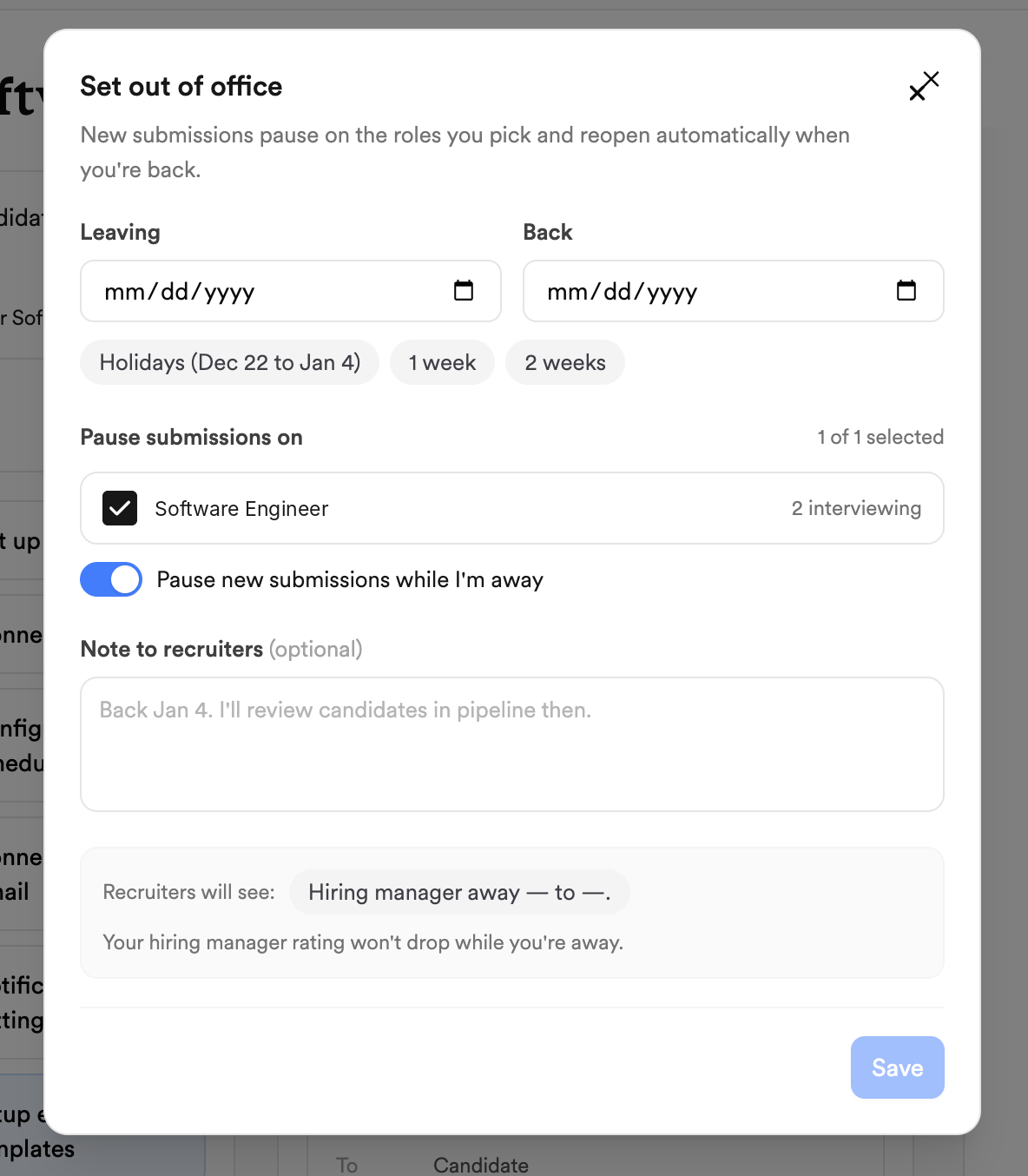
Leaving and return dates. Pick your dates, or tap one of the presets (holidays included).
Roles to pause. Choose which roles to pause while you're out.
Note to recruiters (optional). For example, who to contact while you're away.
Preview. See exactly what recruiters will see before you save.
Additional Context
For committed plan customers, paused roles are not counted towards your committed plan, so the days you're out won't count against you or affect your billing. Using this feature proactively will be key in managing your committed role through the holidays.
Roles with more than one hiring manager: If any hiring manager on a role sets out of office, the role pauses for everyone on it.
This feature doesn't address active candidates in the pipeline. Please be sure you are communicating pauses in the interview process to candidates and/or their recruiters, especially if they're in final rounds approaching an offer.
Don't see the button? Only members of your team with admin permissions will be able to log OOO time. Please ask an admin on your team or your account manager to help you.