Going Out of Office
Last updated: November 24, 2026
Going on vacation or taking time off? Add your out-of-office dates in Settings. While you're away, your trials and inactivity clocks pause and your recruiter status isn't affected, and hiring managers on your roles know when you'll be back.
Adding out-of-office dates
Go to Settings and find Out of office.
Click Add out-of-office dates.
Pick your start and end dates. Time off can start tomorrow at the earliest.
Add a note if you like. Only you and Paraform see it.
Click Save.
You can add as many trips as you need, as long as the dates don't overlap. Your trips show under Upcoming and Past.
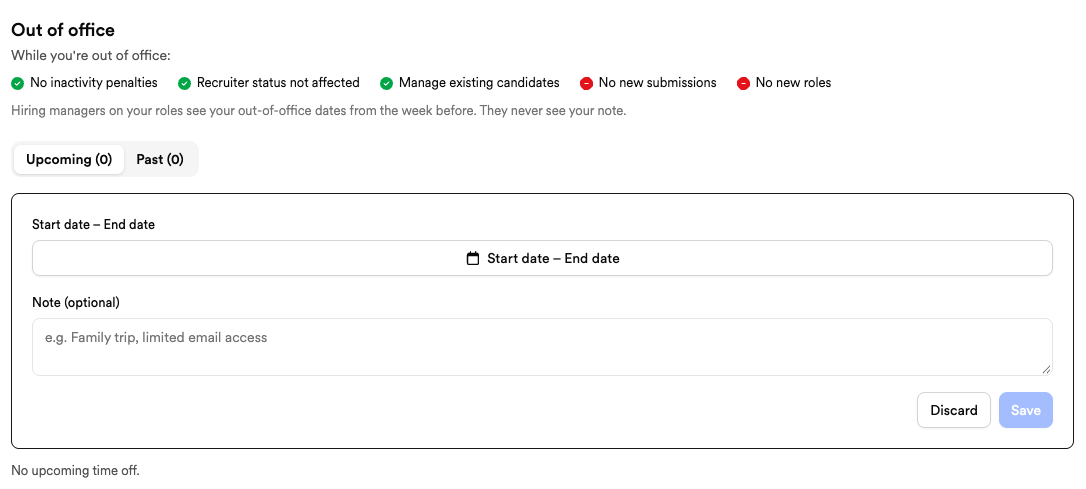
While you're out of office
No inactivity penalties. The inactivity clock on your roles pauses while you're away.
Your trial clock pauses. Days away don't count toward a trial's 10 business days. The clock picks up where it left off when you're back. It doesn't add extra days beyond that.
Your recruiter status isn't affected. Your status looks back past the days you were away, so it still covers 90 days you were working.
You can manage your existing candidates as usual.
No new submissions or role applications. You can't submit candidates, apply to recruit on a role, or start a trial while you're away. They reopen when you're back.
Hiring managers on your roles see your out-of-office dates from the Monday of the week before you leave. They never see your note.
Changing or ending your time off
Before your trip starts, you can edit the dates or remove the trip.
Once it has started, you can only change the last day.
Back early? Click End time off on the trip marked Away now, or on the out-of-office banner, then confirm. Days you were already away still count as time away.
Why can't I submit a candidate right now?
If you see "You're out of office until…", new submissions and role applications are paused until your time off ends. Click End time off on the banner if you're back early.
Can I start my time off today?
No. The first day out must be tomorrow or later.