Candidates Dashboard
Last updated: October 26, 2026
The Candidates dashboard is your personal CRM for every candidate you've sourced, contacted, or are working with on Paraform. The dashboard brings all of your candidates into a single, filterable view that you can lay out as a table, a kanban board, or a calendar.
Navigating the layout
Every candidate lives in one place, and you choose how to look at them with the view switcher at the top of the page.
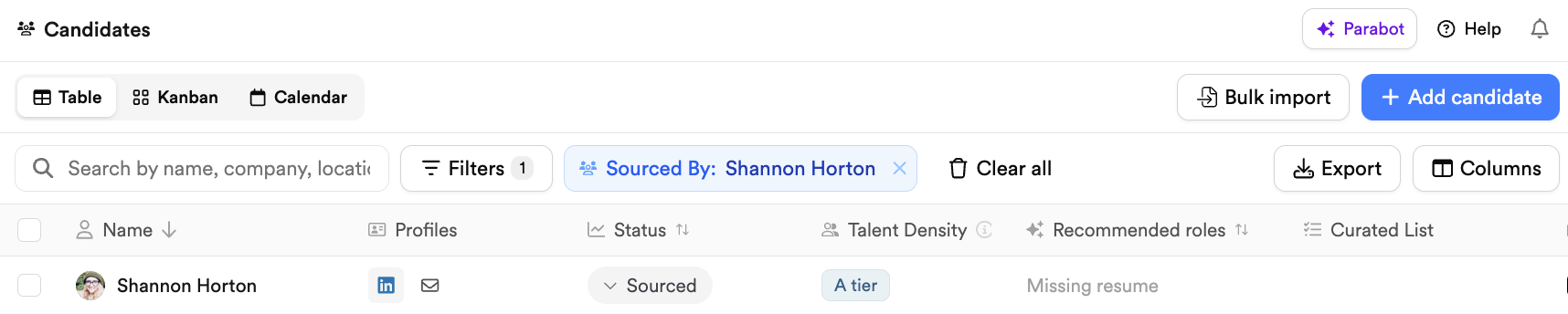
Table: The default view. A row for every candidate you’ve sourced, with sortable columns for things like status, roles, curated lists, tags, and more. You can resize columns and choose which ones show (see Customizing your view).
Agency Tip: adjust the Sourced By filter at the top to show all candidates that the agency or other members within the agency have sourced.
Kanban: A board that groups candidates into columns by their status: sourced, contacted, replied, scheduled call, screened, the active interview stages, and then stay in touch, backburner, and archived. Drag a candidate between columns to update their status. By default the board shows candidates updated in the last month on active and paused roles, however you can edit the time window.
Calendar: A calendar of upcoming candidate interviews, pulled from the roles you're recruiting on.
Finding candidates
A search and filter bar sits above whichever view you're in.
Search: Look up candidates by name, company, location, or role.
Filters: Narrow the list by status, stage, tags, and other fields. Filters apply across every view.
AI filter: Describe what you're looking for in plain language and let Paraform build the filter for you.
Adding candidates
Two buttons sit at the top right of the dashboard.
Add candidate: Add a single candidate.
Bulk import: Add many candidates at once.
If you are using the Chrome extension, any candidate you save from LinkedIn will show up in your dashboard. No need to flip between platform and LinkedIn to save a candidate!
Working with candidates
Click any candidate to open their full profile in an overlay without leaving the dashboard. Close it to return to the same place in your list.
To act on several candidates at once, select them with the checkboxes in table view, then choose a bulk action:
Add to role: Submit or attach the selected candidates to a role.
Set tags: Apply tags for your own organization and filtering.
Find emails: Look up contact emails for the selection.
Add to sequence: Enroll them in outreach via 📄 Email Sequences.
Update status: Update the status of multiple candidates at once.
Add to projects: Group them into a project folder.
Archive: Move them out of your active list.
Customizing your view
Use the view settings on the right of the filter bar to tailor the dashboard to how you work. You can show, hide, and reorder table columns and adjust their widths, choose which columns and card details appear on the kanban board, set how the board is sorted, and export your candidates when you need them outside Paraform.