Paraform Scheduler
Last updated: November 6, 2026
Paraform Scheduler is a built-in candidate booking tool that gives you a personal scheduling link to share with candidates. They pick a slot from your real-time availability, and the meeting drops onto your Google Calendar with a Google Meet or Zoom link attached—no separate scheduling tool needed.
Before you start: connect Google Calendar
Scheduler is powered by your Google Calendar. If you haven't connected it yet, set that up first—see 📄 Google Calendar Integration for more.
Setting up your scheduler
Visit your Integrations page from Settings and select the Google Calendar integration.
Click the Set Up button next to your booking link.
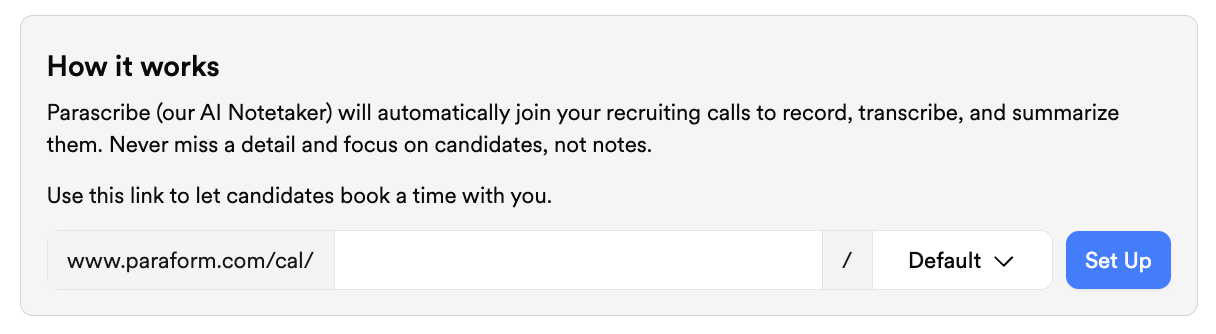
From the Scheduler Settings panel, you can configure:
Your custom Schedule Link
Availability for when you want to schedule meetings
Event Details for your meetings, including your video conferencing tool, calendar description, meeting duration, buffer time, and reminders
A Booking Form to customize the information candidates provide when scheduling
Advanced Settings, including scheduling rules and custom candidate questions
Copy your custom Schedule Link and start sharing it with candidates.
When a candidate selects, reschedules, or cancels a time, the event updates on your Google Calendar and in Paraform automatically.
When to use your scheduling link
In your first outreach. Drop the link into cold emails so interested candidates can book immediately without a back-and-forth.
After reviewing a candidate's resume. Send qualified applicants your link to schedule a screening call.
Follow-up conversations. Any additional candidate calls during the hiring process.
What candidates see
When a candidate opens your scheduling link, they see:
Only the time slots where you're actually free, based on your connected Google Calendar.
Any intake fields you've configured (resume upload, LinkedIn, phone number, etc.) to collect info upfront.
After booking, a confirmation and a Google Meet or Zoom link on the calendar invite sent to both of you.