How to setup Granola Integration
Last updated: July 3, 2026
How to setup Granola Integration
Connect Granola with a Business-plan API key to automatically sync your meeting notes into Paraform, so call context lives alongside your candidates.
Before you start
You need a Granola Business plan account. API keys are a Business-plan feature, and a working key is what tells Paraform you're on the right plan.
Use the same email on Granola as your Paraform account. Paraform only syncs notes you own in Granola and matches them to your candidates using that email, so a mismatch means your calls may never show up.
Setup Granola Integration
In the Granola desktop app, go to Settings → Connectors → API keys and generate a new API key. It will start with
grn_. Copy it. (See Granola's guide to obtaining an API key.)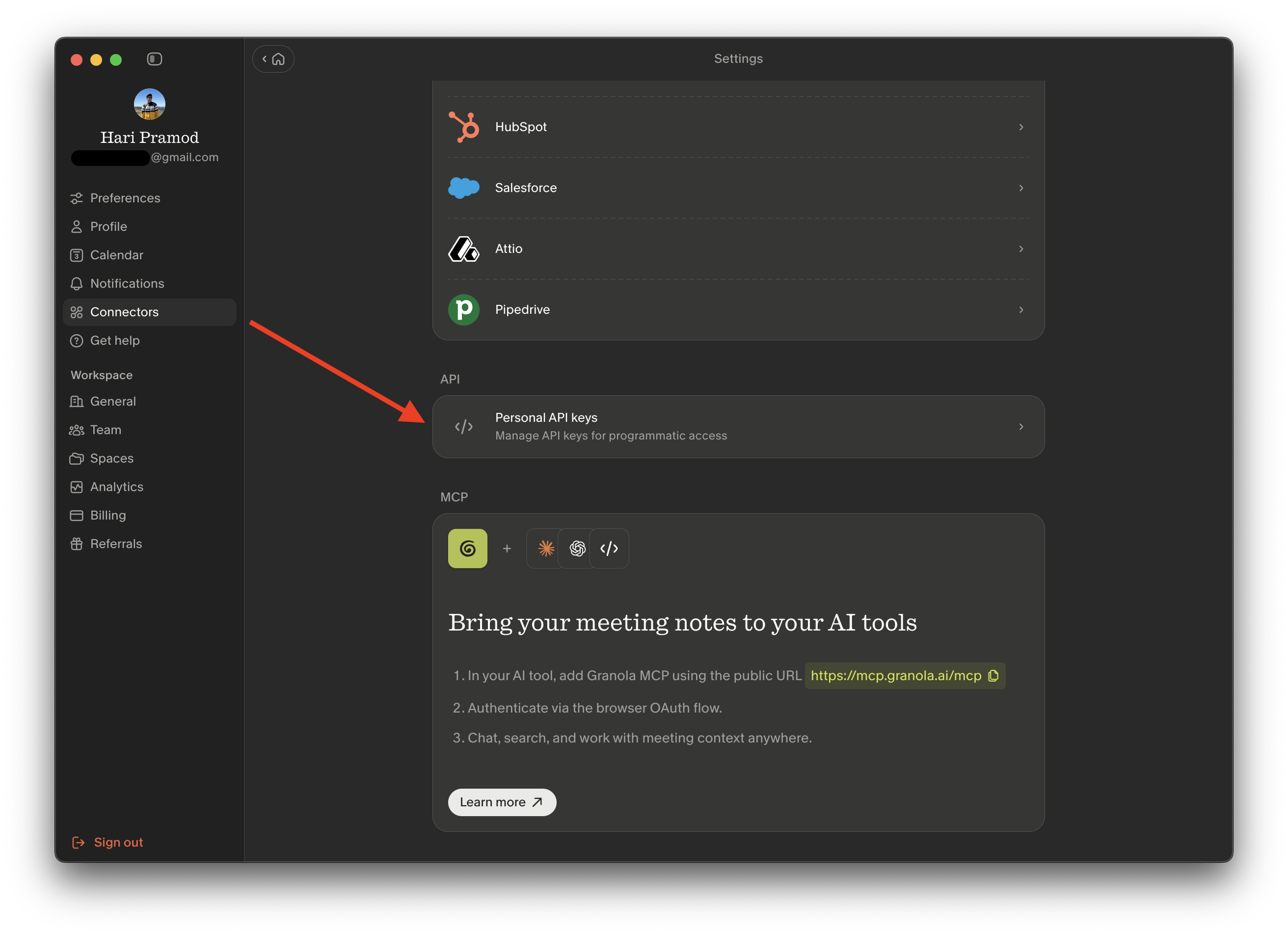
In Paraform, open Settings → Integrations. (Hiring managers reach the same panel from Client Settings → Integrations; the connection is per-user and identical on both surfaces.)
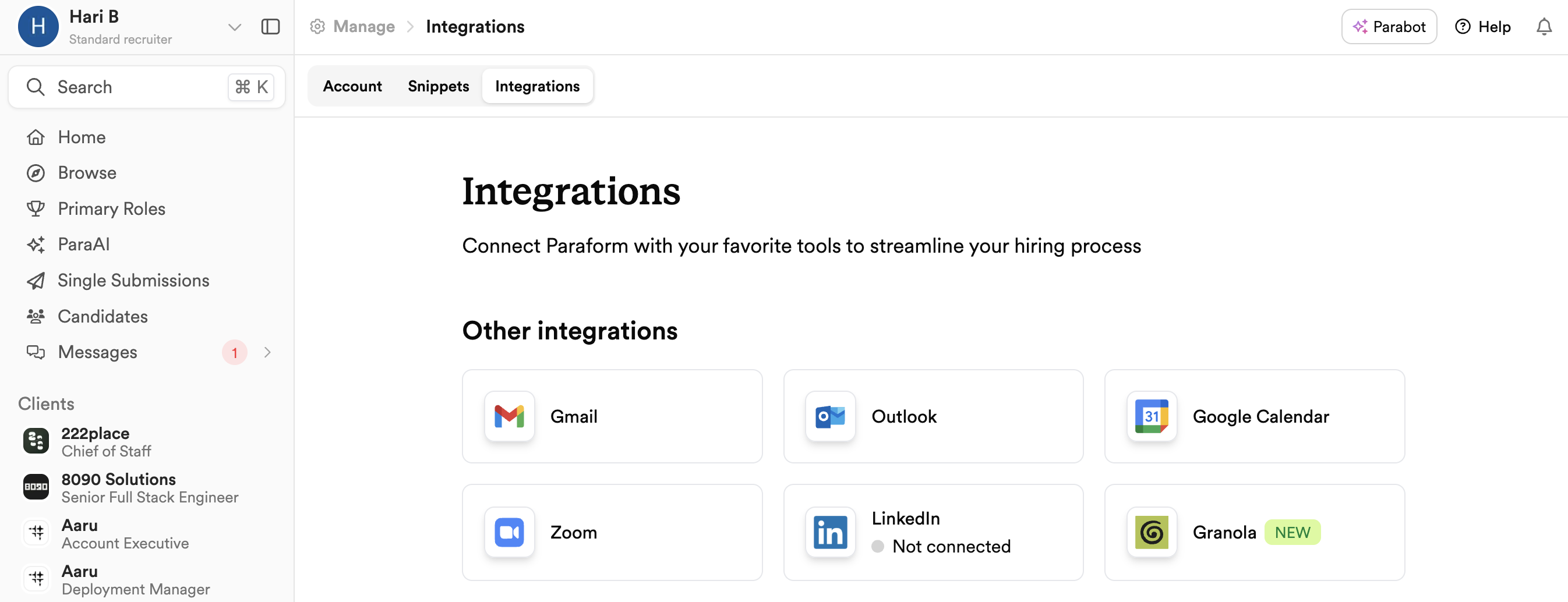
Open the Granola card. In the Granola API key field, paste the
grn_...key you copied, then click Connect.Paraform validates the key against Granola. If it's rejected you'll see an inline error ("Invalid Granola API key" or a note that it must be a Business-plan key), fix it and try again. On success the card flips to Connected and an initial sync starts immediately in the background.
Confirm the connection. The card now shows a green dot with Connected as {your Granola email}, your plan, and a Last synced timestamp once the first sync finishes.
Usage
Once connected, syncing is automatic, there's nothing to trigger per call. The first sync pulls your notes from roughly the last 60 days, and a recurring background job keeps it up to date after every meeting. Notes usually appear within a few minutes of Granola finishing its transcript.
Synced meetings land on your Calls page. When the meeting's other attendee matches a candidate, application, or role in Paraform, the call is automatically linked to that record; ad-hoc calls that don't match anyone still sync as standalone calls. Each call carries the full transcript (labeled with you and the other speaker) and a link back to the original Granola note.
A few things worth knowing:
Only your own notes sync. On a shared Business/Team workspace, Paraform ignores notes owned by other members and only ingests the ones owned by the Granola account tied to your key.
If a call is missing, check that the meeting participants match a candidate in Paraform and that your Granola login email matches your Paraform email.
Reconnecting
If your key is later revoked or expires, the card changes to Reconnect needed (or Sync error if a sync failed). Generate a fresh key in Granola and paste it into the same field to restore syncing.
Disconnecting
Click Disconnect on the connected card. You'll be asked to confirm, with an optional checkbox to also delete previously-synced Granola notes from Paraform. Leave it unchecked to keep the calls that already synced; check it to purge them along with the connection.