Parascribe
Last updated: October 26, 2026
We understand that one of the most important aspects of screening a candidate is ensuring that everything a candidate said is being noted. Parascribe is an AI notetaker to help you stay on top of all of your candidate calls.
What is Parascribe?
Parascribe is Paraform's AI notetaker. It syncs with your calendar and joins your candidate screens on Google Meet, Zoom, or phone, so you can focus on the conversation instead of taking notes.
Every call, recorded and summarized. Parascribe records the call and gives you a full transcript, a summary, and next steps. These are saved to your Calls dashboard and to the candidate's profile. You can also have action items added to your Tasks automatically.
Better AI Calibrations, automatically. When you AI Calibrate a candidate against a role, transcripts from your screening calls with that candidate are used as evidence alongside their resume. The calibration can then weigh what the candidate actually told you, like motivations, compensation, or experience that isn't on their resume. Each piece of evidence links back to the moment in the recording where it was said, so you can check it yourself.
Enabling Parascribe
Navigate to your Calls tab from the Tools section of the left-hand panel.
Connect your Google Calendar.
Choose platforms. Google Meet is on by default, but you can also configure Zoom and Granola.
Add your phone number. It is required for the setup to be fully completed and it's how phone screens get tied back to your account.
Parascribe preferences
Click the Settings button at the top right of the Calls dashboard to access your preferences.
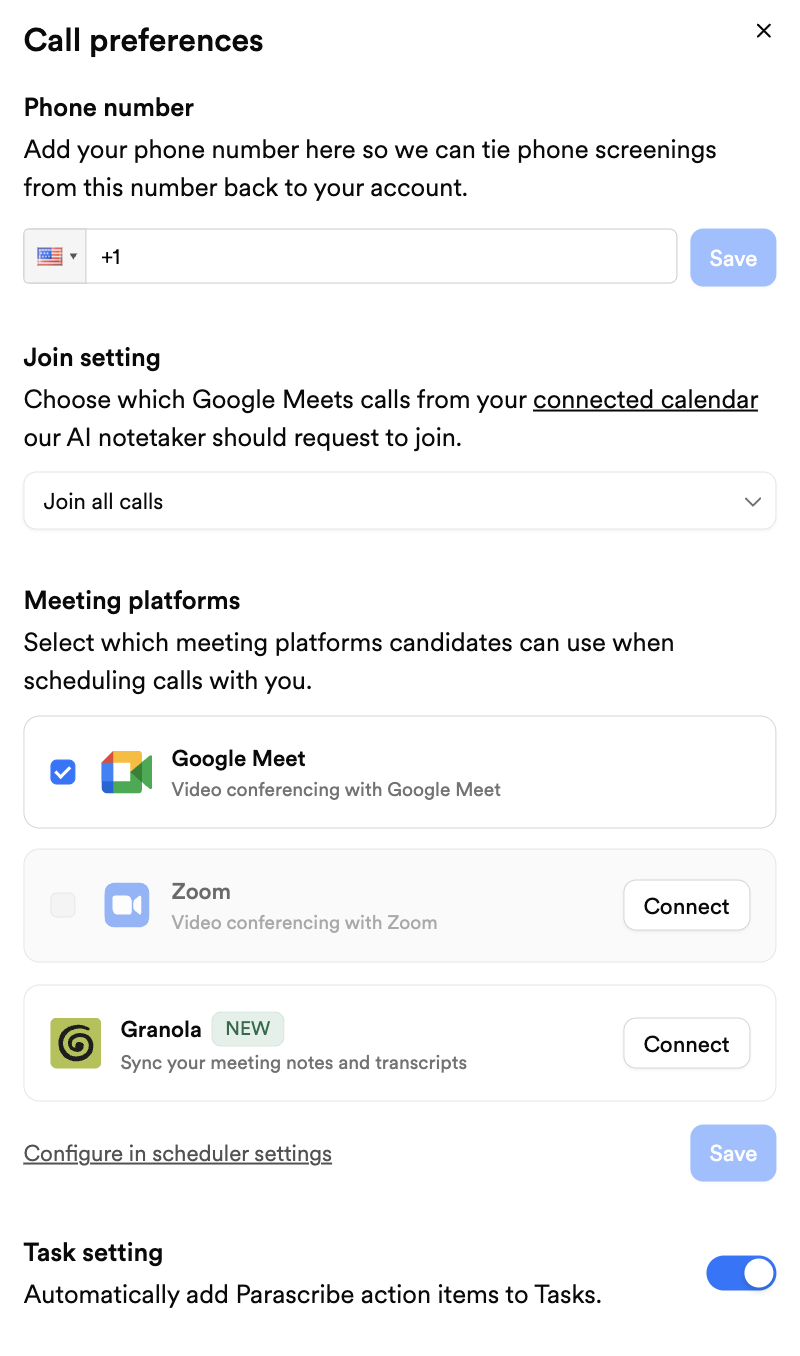
Inside this window, you can toggle different settings for Parascribe, including:
Which calls Parascribe joins—all, calls that match candidate emails, or none.
The option to allow Parascribe to add action items to Tasks.
Quick access to create your own booking link for candidates—just click Configure in scheduler settings.
Using Parascribe
Parascribe will automatically join video calls according to your set preferences.
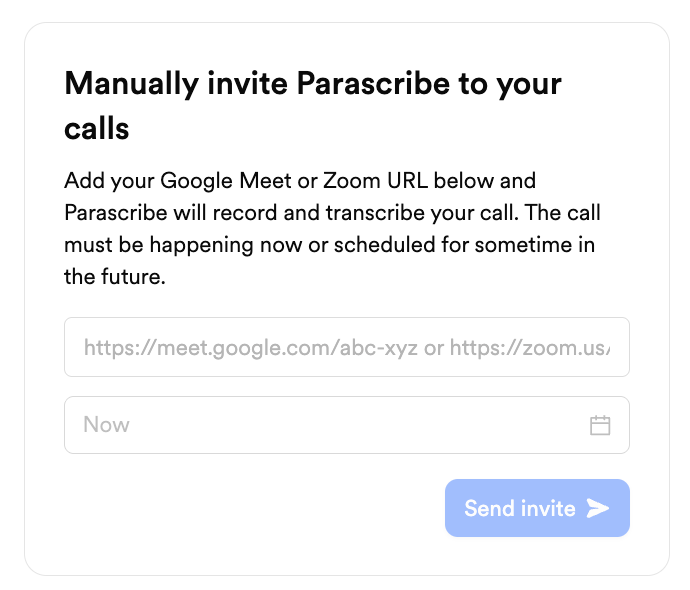
To manually add a scheduled video call, paste its Meet or Zoom link.
To screen candidates via phone call, dial the bridge number from your saved phone, then press 1# or enter the candidate’s number.
Troubleshooting
If Parascribe isn't automatically joining calls or isn't recording, we recommend disconnecting your email and Google Meet/Zoom and go through the steps above again.
Don’t want to use Parascribe?
If you don’t want to use Parascribe, no problem! We do allow the use of other AI notetakers to be used to upload recorded clips of screening calls to applications. While we recommend using Parascribe to keep all information on platform and in one place, it is not required.